EG254S: IoT System Project - IoT Security

Configuring MQTT Authentication with Username and Password
(Adapted from: http://www.steves-internet-guide.com/mqtt-username-password-example)
The Mosquitto MQTT broker can be configured to require client authentication using a valid username and password before a connection is permitted.
The username and password combination is transmitted in plaintext, and is not secure without the TLS/SSL encryption on the transport layer as we had seen in Testing the TLS/SSL Secure Communication (Step 4).
However, using username and password authentication does provide an easy way of restricting access to a broker.
We will look at how to configure username and password restrictions on the Mosquitto broker and look how it works by looking at some connection examples using simple Python test scripts.
Note: The username used for authentication can also be used in restricting access to topics.
Mosquitto Broker Configuration
All forms of restrictions, i.e., client id, username/password, topic, etc; are implemented on the MQTT broker.
Once implemented on the broker it is up to the client to comply with these restrictions in order to Connect, Subscribe and Publish.
To configure the Mosquitto broker you will need to:
- Create a password file
- Edit the mosquitto.conf file to force password use.
To create a password file you need to use the mosquitto_passwd utility that comes with the client tools when installing the Mosquitto broker.
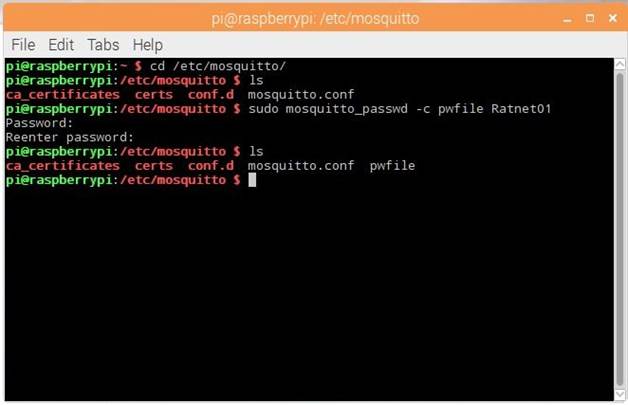
On Raspberry Pi, open the terminal and change to the directory where we want the password file to be created in:
pi@raspberrypi:~ $ cd /etc/mosquitto/
Now create the password file using the command:
pi@raspberrypi:/etc/mosquitto $ sudo mosquitto_passwd -c pwfile Ratnet01
The above command adds the user to the password file. We had created the username: Ratnet01 as the first mesh network of Rat Bait Stations and named the password file as pwfile. Next, we set the password: ratpoison
Below shows the process:
Note: For future expandability, likewise we create the username: Ratnet02 for the second mesh network of Rat Bait Stations.
To add additional users to the file, we can use the command:
pi@raspberrypi:/etc/mosquitto $ sudo mosquitto_passwd -b pwfile Ratnet02 ratpoison
When we open the pwfile file, we should see this:
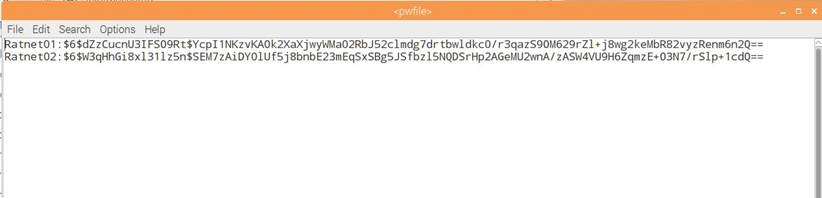
The passwords are encrypted.
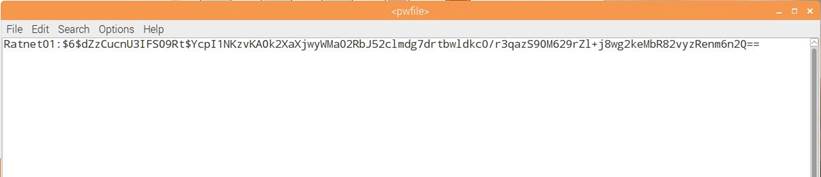
We can also delete users from the pwfile file using the command:
pi@raspberrypi:/etc/mosquitto $ sudo mosquitto_passwd -D pwfile Ratnet02
Now if you open the pwfile file again you should see this:
Using the Password file
We need to activate the two options in the mosquitto.conf file which are to set allow anonymous to false and to set the password_file path.
On the terminal, edit the mosquitto.conf file:
pi@raspberrypi:/etc/mosquitto $ sudo nano mosquitto.conf
Set the following configuration:
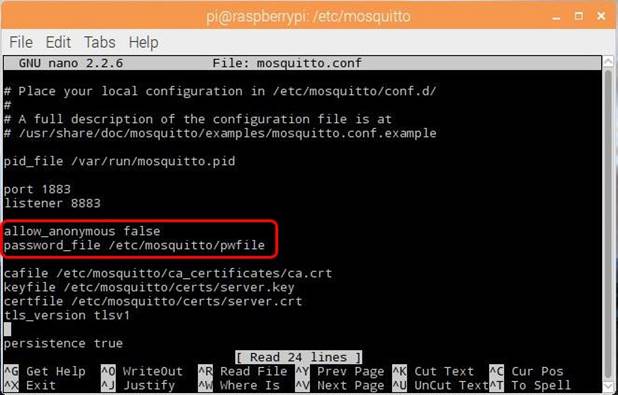
Save the mosquitto.conf file and reboot the Raspberry Pi.
The mosquitto.conf file will be loaded on bootup. Now the Mosquitto requires authentication with username and password to be connected.
Paho Python MQTT Client Configuration
To connect to a broker that implements username/password restrictions you need to use the helper method username_pw_set() of the Paho client.
This you must call before establishing the connection.
The format is:
username_pw_set(username=”Ratnet01”,password=”ratpoison”)
Detecting Authentication Errors
If you try to connect to a broker without the correct authentications details the connection will be rejected.
To detect this you will need to examine the on_connect callback.
If you examine the documentation for the on_connect callback method you will see that it accepts 4 parameters.
on_connect(client, userdata, flags, rc):
The rc parameter is the return code and should be 0 for a good connection.
A return code of 5 indicates an authentication error.
Testing the Password Connection
The on_connect callback method shown below just prints out the return code and looks like this:
def on_connect(client, userdata, flags, rc):
print("Connected flags ",str(flags),"result code ",str(rc))
For the test, we shall connect the client using Paho Python MQTT client to the MQTT broker with incorrect and followed by correct passwords.
Watch the video:
The above test confirms the Mosquitto configuration had been correctly set, requiring MQTT authentication with username and password for connection.