ET1530: Project - Week 3 - 4
Vsftpd - FTP Server on Ubuntu
(Adapted from: https://help.ubuntu.com and https://www.digitalocean.com)
VSFTPD stands for "Very Secure FTP Daemon" is a GPL licensed FTP server for UNIX systems. It is licensed under the GNU General Public License. It supports IPv6 and SSL. vsftpd supports explicit (since 2.0.0) and implicit (since 2.1.0) FTPS. vsftpd is the default FTP server in the Ubuntu, CentOS, Fedora, NimbleX, Slackware and RHEL Linux distributions. It is secure and extremely fast. It is stable. VSFTPD is a mature and trusted solution which supports virtual users with PAM (pluggable authentication modules). A virtual user is a user login which does not exist as a real login on the system in /etc/passwd and /etc/shadow file. Virtual users can therefore be more secure than real users, because a compromised account can only use the FTP server but cannot login to system to use other services such as SSH or SMTP.
Installation
To install vsftpd , run the following command:
sudo apt-get install vsftpd
We now have vsftpd on our server, but we still must configure it.
Configure Basic vsftpd Functionality
The default configuration file is at /etc/vsftpd.conf:
sudo nano /etc/vsftpd.conf
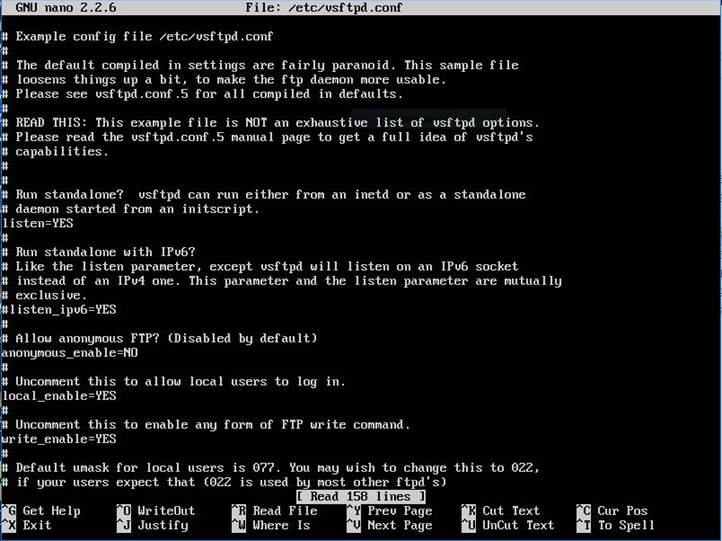
To disable anonymous login and to enable local users login and give them write permissions:
# No anonymous login
anonymous_enable=NO
# Let local users login
# If you connect from the internet with local users, you should enable TLS/SSL/FTPS
local_enable=YES
# Write permissions
write_enable=YES
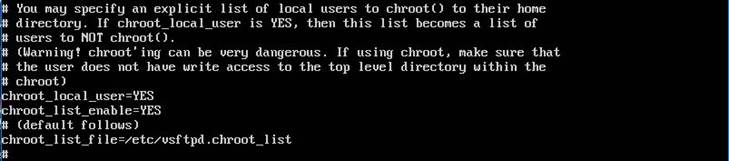
To jail / chroot users (not the VSFTPD service), search for "chroot_local_users" on the file and edit the following: Code:
#
Just some users are "free":
chroot_local_user=YES
chroot_list_enable=YES
# Create the file /etc/vsftpd.chroot_list with a list of the "free" users.
NOTE: you definitely should use this if you connect from the Internet to your box, otherwise passwords will be sent in plaintext, etc.
To use vsftpd with encryption (it's safer), change or add the following options (some options aren't on the original config file, so add them): Code:
ssl_enable=YES
allow_anon_ssl=NO
force_local_data_ssl=YES
force_local_logins_ssl=YES
ssl_tlsv1=YES
ssl_sslv2=NO
ssl_sslv3=NO
# Filezilla uses port 21 if you don't set any port
# in Servertype "FTPES - FTP over explicit TLS/SSL"
# Port 990 is the default used for FTPS protocol.
# Uncomment it if you want/have to use port 990.
# listen_port=990
No need to create a certificate since openssl package is installed!
Create the file /etc/vsftpd.chroot_list and list administrator as “free” user:
sudo nano /etc/ vsftpd.chroot_list
Don't forget that to apply new configurations, we must restart the vsftpd service. Code:
sudo service vsftpd restart
Using Filezilla
Install Filezilla (on the client side), click on File and select Site Manager... and use the Protocol "SFTP – SSH File Transfer Protocol" option to connect to our server. Fill in the Host and Port; Logon Type: Key file, User: administrator and Key file:
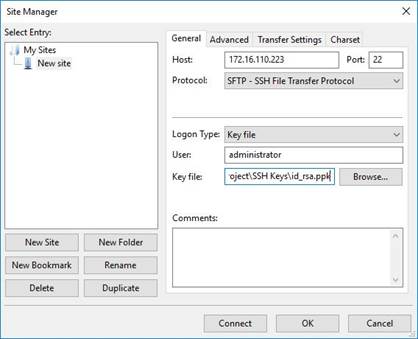
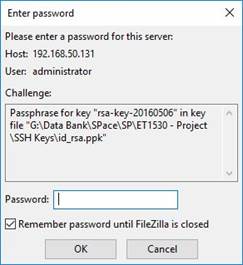
Click on Connect and enter the passphrase key Password:
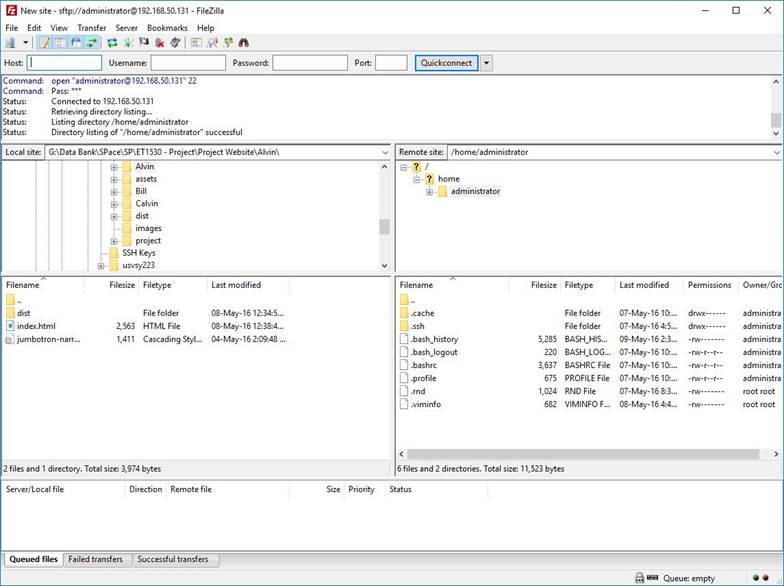
Finally, we are in: