ET1530: Project - Week 2 - 3
Creating a SSL Certificate on Apache for Ubuntu
(Adapted from: https://www.digitalocean.com)
TLS, or transport layer security, and its predecessor SSL, secure sockets layer, are secure protocols created in order to place normal traffic in a protected, encrypted wrapper.
These protocols allow traffic to be sent safely between remote parties without the possibility of the traffic being intercepted and read by someone in the middle. They are also instrumental in validating the identity of domains and servers throughout the internet by establishing a server as trusted and genuine by a certificate authority.
In this guide, we'll cover how to create a self-signed SSL certificate for Apache on an Ubuntu 14.04 server, which will allow you to encrypt traffic to your server. While this does not provide the benefit of third party validation of your server's identity, it fulfills the requirements of those simply wanting to transfer information securely.
Activate the SSL Module
SSL support actually comes standard in the Ubuntu 14.04 Apache2 package. We simply need to enable it to take advantage of SSL on our system.
Enable the module by typing:
sudo a2enmod ssl
After having enabled SSL, we have to restart the web server for the change to be recognised:
sudo service apache2 restart
With that, our web server is now able to handle SSL if we configure it to do so.
Create a Self-Signed SSL Certificate
Let's start off by creating a subdirectory within Apache's configuration hierarchy to place the certificate files that we will be making:
sudo mkdir /etc/apache2/ssl
Now that we have a location to place our key and certificate, we can create them both in one step by typing:
sudo openssl req -x509 -nodes -days 183 -newkey rsa:2048 -keyout /etc/apache2/ssl/apache.key -out /etc/apache2/ssl/apache.crt
Let's go over exactly what this means.
· openssl: This is the basic command line tool provided by OpenSSL to create and manage certificates, keys, signing requests, etc.
· req: This specifies a subcommand for X.509 certificate signing request (CSR) management. X.509 is a public key infrastructure standard that SSL adheres to for its key and certificate managment. Since we are wanting to create a new X.509 certificate, this is what we want.
· -x509: This option specifies that we want to make a self-signed certificate file instead of generating a certificate request.
· -nodes: This option tells OpenSSL that we do not wish to secure our key file with a passphrase. Having a password protected key file would get in the way of Apache starting automatically as we would have to enter the password every time the service restarts.
· -days 365: This specifies that the certificate we are creating will be valid for one year.
· -newkey rsa:2048: This option will create the certificate request and a new private key at the same time. This is necessary since we didn't create a private key in advance. The rsa:2048 tells OpenSSL to generate an RSA key that is 2048 bits long.
· -keyout: This parameter names the output file for the private key file that is being created.
· -out: This option names the output file for the certificate that we are generating.
When you hit "ENTER", you will be asked a number of questions.
The most important item that is requested is the line that reads "Common Name (e.g. server FQDN or YOUR name)". You should enter the domain name you want to associate with the certificate, or the server's public IP address if you do not have a domain name.
The question portion looks something like this:
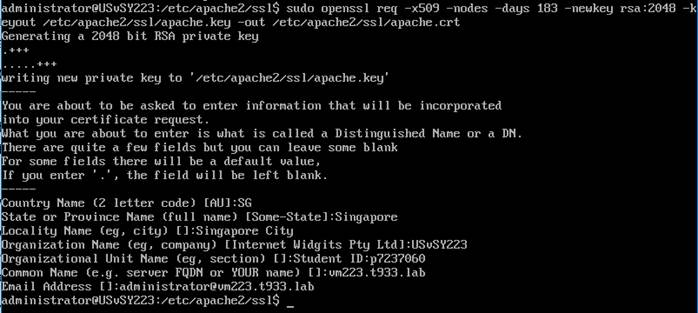
The key and certificate will be created and placed in your /etc/apache2/ssl directory.
Configure Apache to Use SSL
Now that we have our certificate and key available, we can configure Apache to use these files in our virtual host file.
Instead of basing our configuration file off of the 000-default.conf file in the sites-available subdirectory, we're going to base this configuration on the default-ssl.conf file that contains some default SSL configuration.
We shall configure our ssl virtual host or site, copy that file into the same directory with the name ssl-vm223.t933.lab.conf:
sudo cp /etc/apache2/sites-available/default-ssl.conf /etc/apache2/sites-available/ssl-vm223.t933.lab.conf
Open the file with root privileges:
sudo nano /etc/apache2/sites-available/ssl-vm223.t933.lab.conf
This may look a bit complicated, but luckily, we don't need to worry about most of the options here.
We want to set the normal things we'd configure for our virtual host (ServerAdmin, ServerName, ServerAlias, DocumentRoot, etc.) as well as change the location where Apache looks for the SSL certificate and key.
Under ServerAdmin, we replace webmaster@localhost with:
ServerAdmin administrator@vm223.t933.lab
And DocumentRoot, we replace /var/www/html with:
DocumentRoot /var/www/vm223
Add the line ServerName vm223.t933.lab:
ServerName vm223.t933.lab
Relocate the SSLCertificateFile and SSLCertificateKeyFile to:
SSLCertificateFile /etc/apache2/ssl/apache.crt
SSLCertificateKeyFile /etc/apache2/ssl/apache.key
In the end, it will look something like this:
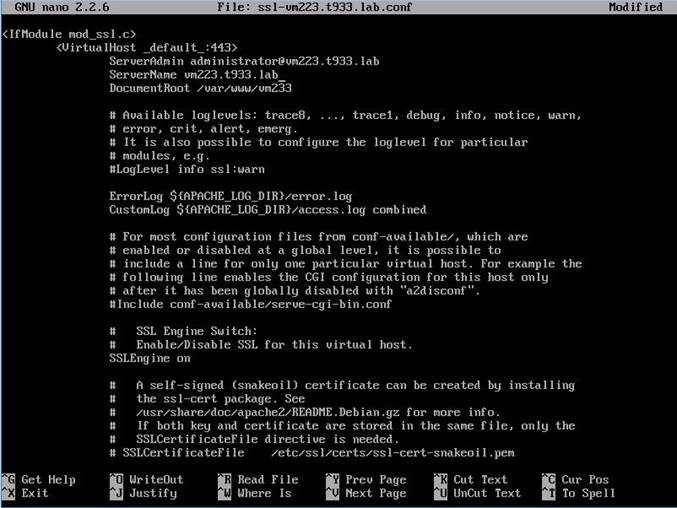
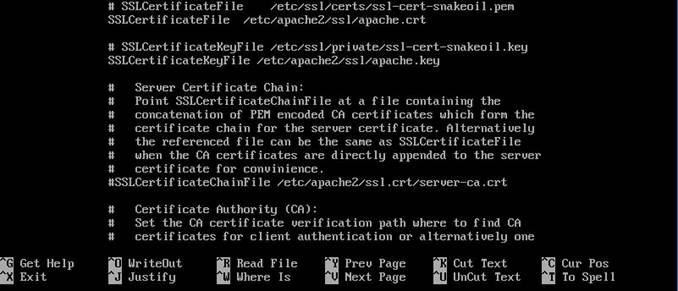
Save and exit the file when finished.
Activate the SSL Virtual Host
Now that we have configured our SSL-enabled virtual host, we need to enable it.
We can do this by typing:
sudo a2ensite ssl-vm223.t933.lab
We then need to restart Apache to load our new virtual host file:
sudo service apache2 reload
This should enable your new virtual host, which will serve encrypted content using the SSL certificate we created.
Testing the Setup
Now that we have everything prepared, we can test our configuration by visiting our server's domain name or public IP address after specifying the https:// protocol, like this:
https://vm223.t933.lab
Conclusion
You should now have SSL enabled on your website. This will help to secure communication between visitors and your site, but it will warn each user that the browser cannot verify the validity of the certificate.
If you are planning on launching a public site and need SSL, you will be better off purchasing an SSL certificate from a trusted certificate authority.
If you want to learn more about how to configure Apache, click here. Check out this link for more ideas on how to secure your Linux server.