ET1530: Project - Week 1 - 2
How to Install OpenSSH Server on Ubuntu
(Adapted from: https://help.ubuntu.com)
To install OpenSSH server,
sudo apt-get update
sudo apt-get install openssh-server
As we need to edit the sshd_config file in the /etc/ssh directory, make a backup of the sshd_config file by copying it to the home directory, or making a read-only copy in /etc/ssh by doing:
sudo cp /etc/ssh/sshd_config /etc/ssh/sshd_config.factory-defaults
sudo chmod a-w /etc/ssh/sshd_config.factory-defaults
Creating a read-only backup in /etc/ssh means we'll always be able to find a known-good configuration when you need it.
SSH Logins with PuTTY
(Adapted from: https://www.howtoforge.com)
First we need to install PuTTY on our Windows system. All we need to do is download the executable file (.exe) and save it somewhere, e.g. on the desktop. We don't need to install it as it is a standalone application. To start it, we only need to double-click it.
Create a Profile with Settings for our 172.16.110.223 Server
In PuTTY, we can create profiles for connections to our various SSH servers, so we don't have to type in the settings again when we want to connect to a certain server again.
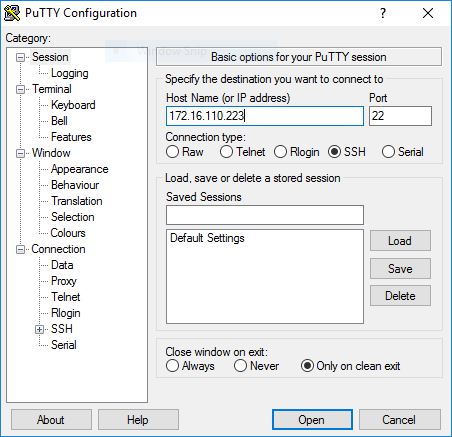
Let's create a profile for our 172.16.110.223 server. Start PuTTY by double-clicking its executable file. We are now in the category Session (see the tree on the left side of the screenshot). Enter 172.16.110.223 under Host Name (or IP address), enter 22 under Port and select SSH under Connection type:
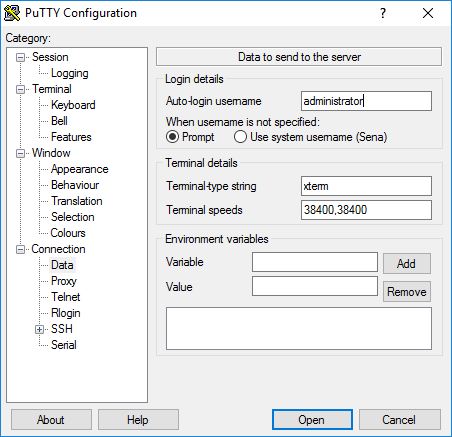
Then go to Connection -> Data and specify the username with what we want to log in to our SSH server under Auto-login username. We use administrator:
Then go to Session again. Under Saved Sessions enter a name for the profile, 172.16.110.223 or any other string that let us remember for which server the profile is. Then click on Save:
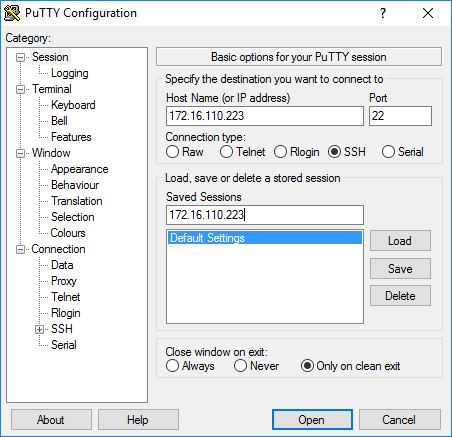
The next time we use PuTTY, we can simply select the appropriate profile from the Saved Sessions text area, click on Load and then Open.
Connect to the SSH Server
Now we can connect to our SSH server simply by clicking on Open.
Since, we connect to the server for the first time, a security warning pops up. This is because PuTTY doesn't know the server's host key yet, so it is safe to click on Yes.
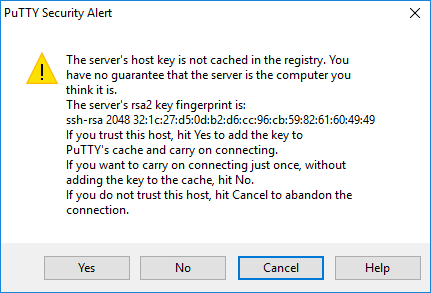
We have saved the username with which we connect in our profile settings, so we don't have to type it here again. We only have to specify that user's password:
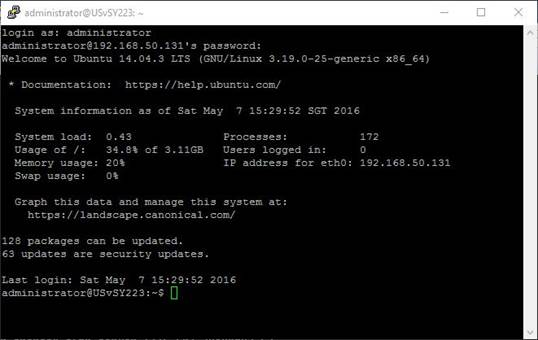
Now this is the "normal" way of logging in, i.e., with a username and a password. If anyone else knows the username and password, he can log in, too. So, if we have weak passwords and/or we are the victim of a brute-force attack, this can become a problem. Hence, we need to using SSH keys.